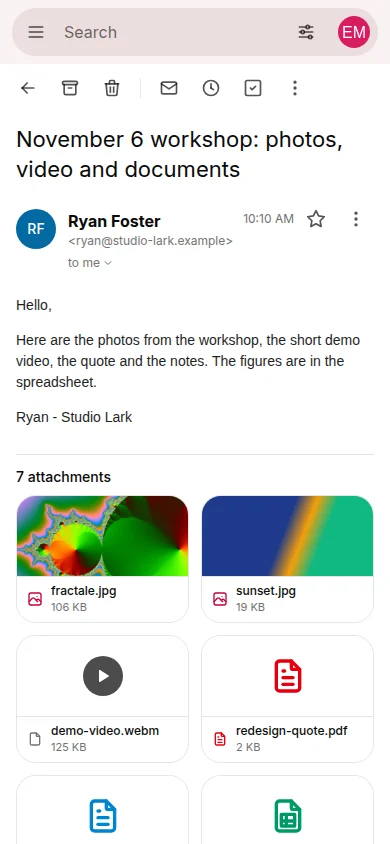
Clicking a row opens the conversation: all the messages exchanged on the same subject, from oldest to newest. Messages you have already read are collapsed; click one to expand it. Conversation view can be turned off in Settings › General › Conversation view (each message then appears on its own in the list).
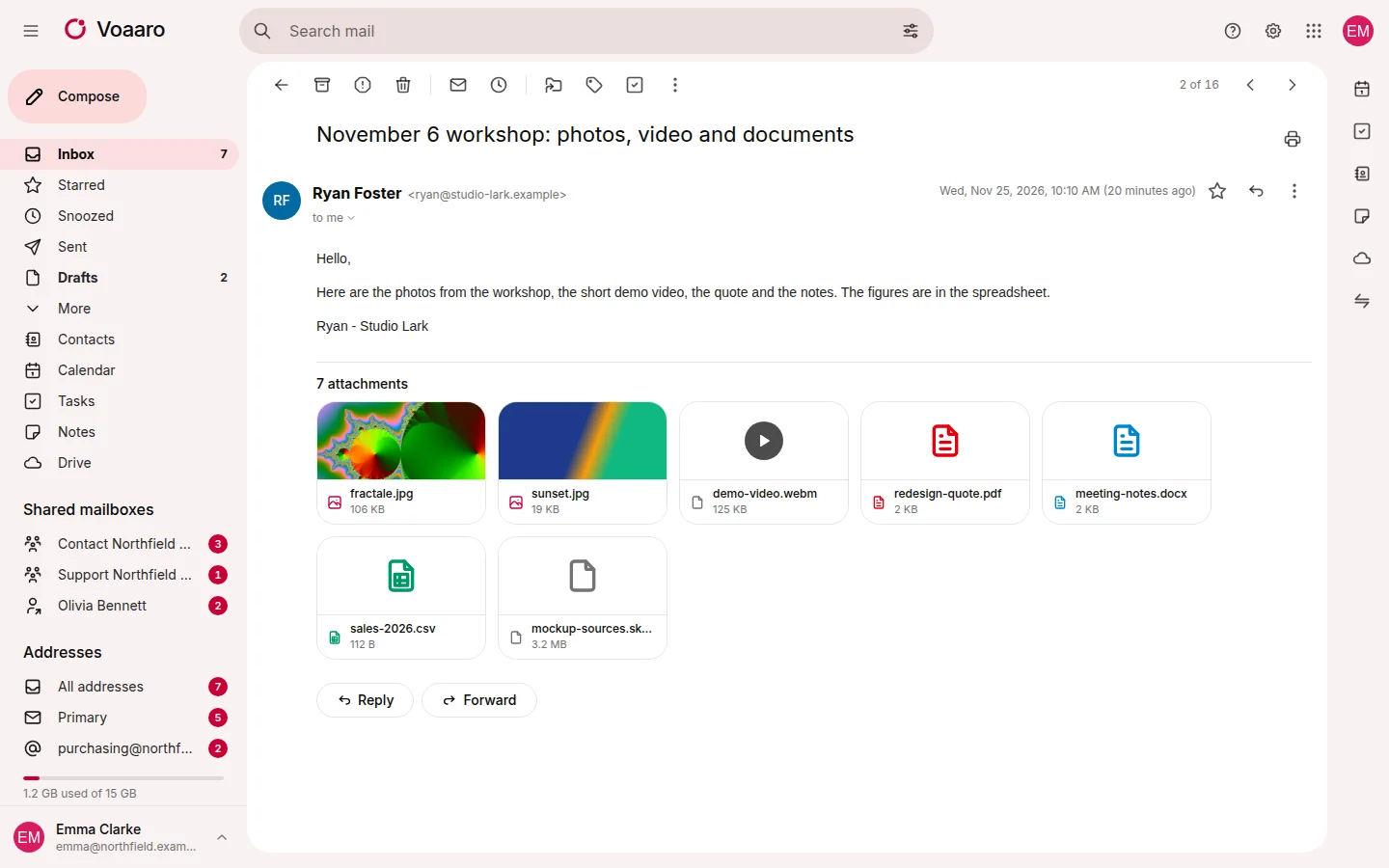
The message header
The sender's name and address, recipients ("to me"), date (full date on hover), star, Reply and the message options menu: reply all, forward, filter messages like this, print, delete this message, Show original, report spam or phishing, create a note from this message. Hovering over the sender's name shows their contact card. A newsletter shows Unsubscribe next to the sender.
A bar above the conversation repeats the list actions (archive, spam, delete, read, snooze, move, labels), Add to Tasks and the position "5 of 16" with arrows to the neighbouring conversation.
Attachments
Attachments show as thumbnails below the message; a dangerous file (executable, macro) is outlined in red. A click opens the full-screen viewer: images (zoom, pan, rotate), video and audio, PDF (pages, zoom, search), Word documents, text and CSV, with Print, Download and the ← → arrows to move to the next one. An unknown format only offers the download.
Reply and forward
Reply, Reply all and Forward open the editor below the conversation, with the quoted text. The default reply mode (reply or reply all) and the Send and archive button are set in Settings › General. For writing the message itself, see Writing a message.
External images and security
By default, Voaaro asks before showing a message's external images: they are often used to find out whether you opened it. The "Images are hidden." banner offers Display images (this message) and Always display images (all messages). The setting is also in Settings › General › Images.
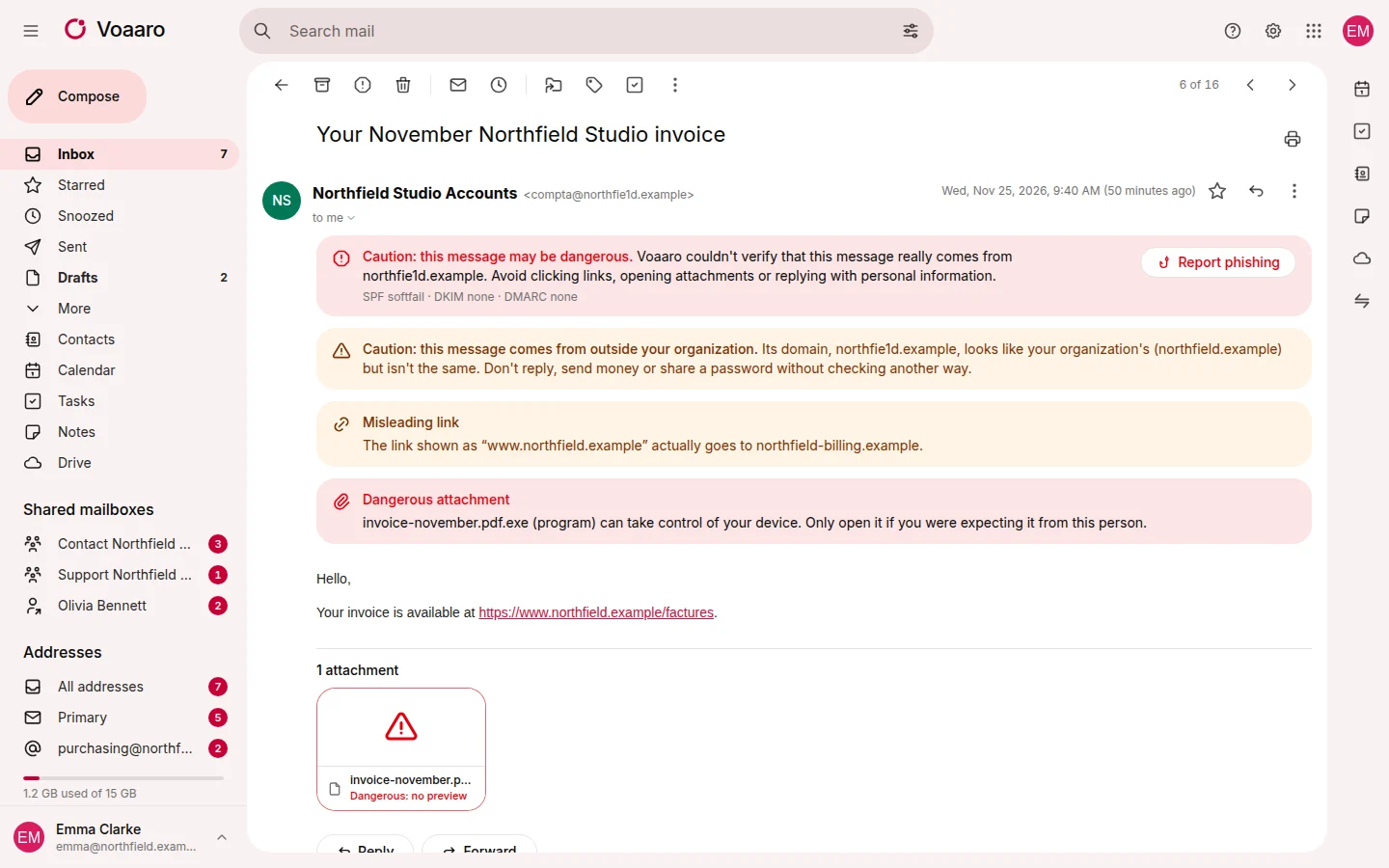
Coloured banners flag a suspicious message: a sender impersonating someone else (lookalike domain, misleading name), a link whose text doesn't match its destination, a dangerous attachment, failed authentication (SPF, DKIM, DMARC). Report phishing moves the conversation to spam and teaches the filter to recognise similar messages; the sender is not notified. See also Privacy.
Invitations
A message that contains an invitation (.ics) shows a card above the text: date, location, organiser and guests, then "Going?" Yes, Maybe, No. Your answer goes to the organiser and the event is added to your calendar.
On a phone
The conversation takes up the whole screen; the arrow at the top left goes back to the list. More menus open as a drawer from the bottom.