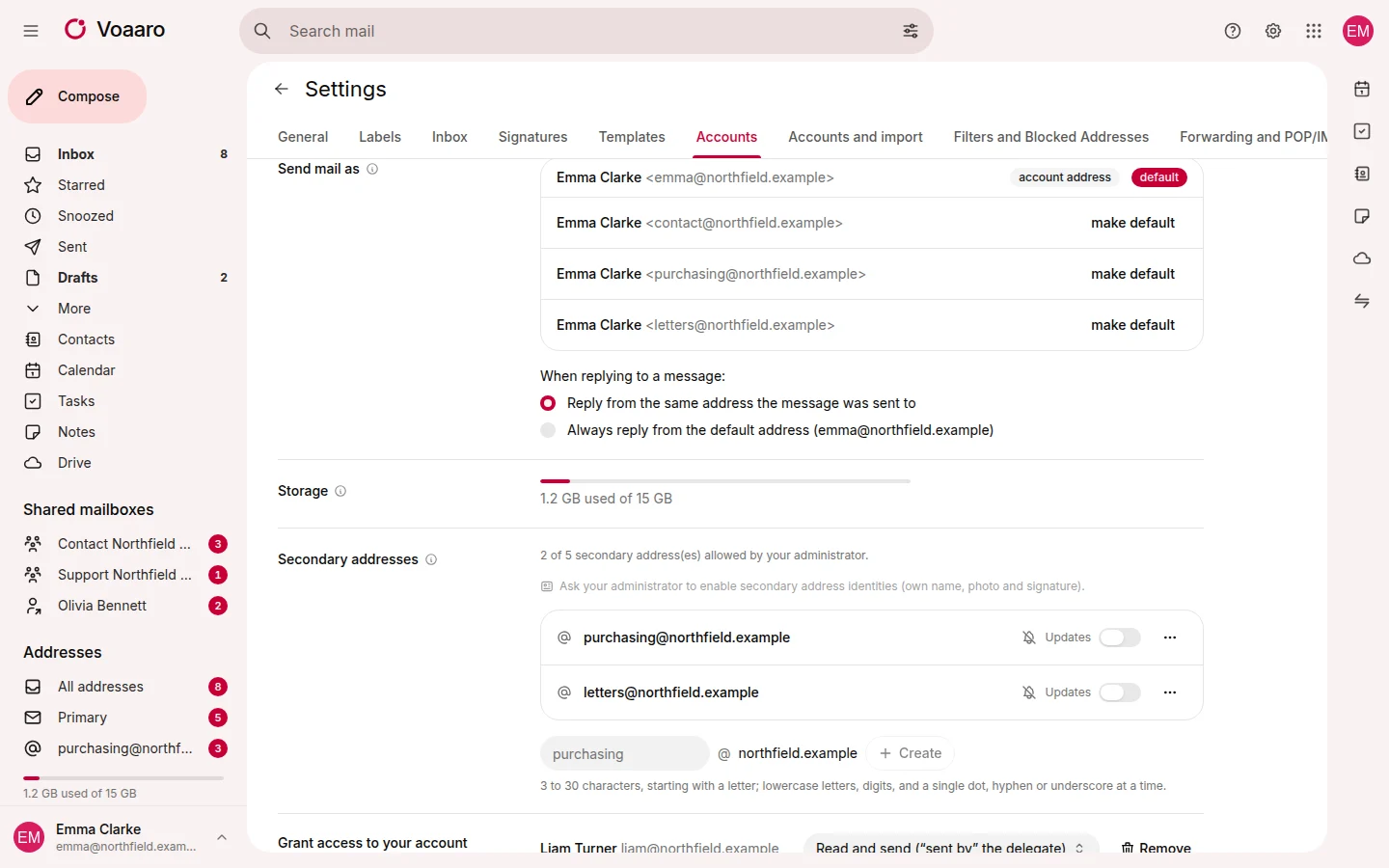
A secondary address (purchasing@example.com, letters@example.com) arrives in your mailbox, like an alias, but Voaaro knows which address each message came in through: you can look at one address on its own, reply from it and turn it off without losing anything. Secondary addresses exist if the administrator has enabled them, within the limit they set (and that of your plan on a public service).
Create, turn off, delete an address
Account menu › New address, or Settings › Accounts › Secondary addresses: choose the name (3 to 30 characters) and the domain; the address receives mail right away. In the same list, each address has its own settings:
- Notifications for its new messages, or not;
- Turn off: it receives nothing until you turn it back on; new messages are either rejected (the sender gets an "unknown address" error) or silently discarded;
- Delete: same choice for messages that still arrive; the address stays reserved for 90 days;
- Identity (name, photo, signature)… and Reply-to address, if the administrator has enabled identities for secondary addresses (see below).
Messages already received stay in your mailbox in every case.
"Switch mailbox"
The account menu (your photo, at the top right) lists all the mailboxes you can open, each with its unread count: your main address (All addresses), each secondary address, then shared and delegated mailboxes. New address and New shared mailbox (for those allowed to create one) are right below.
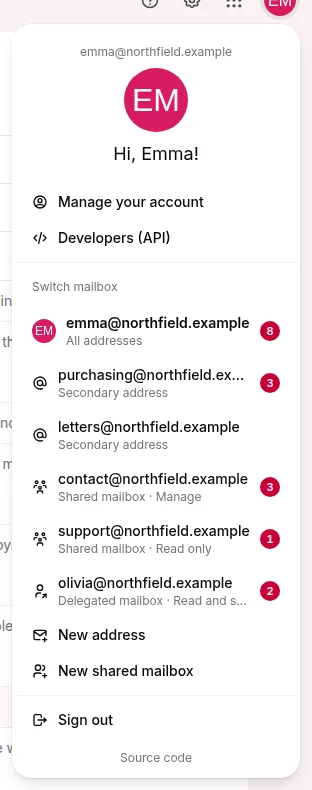
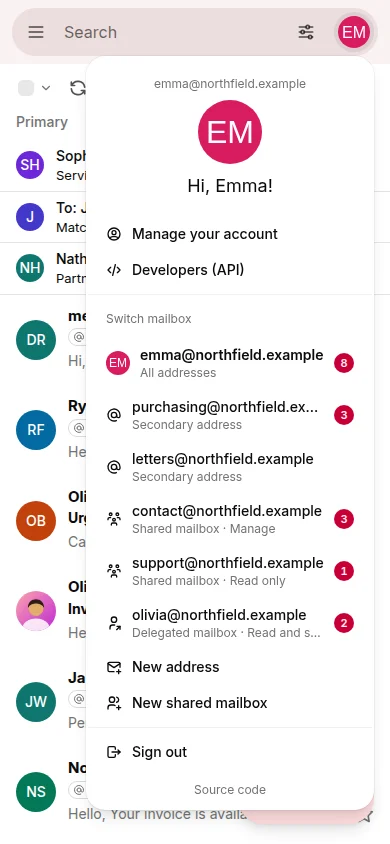
On a phone, the same menu opens from your photo at the top of the list.
An address's view
Choosing a secondary address (in "Switch mailbox" or in the Addresses section of the sidebar) only shows messages received by it or sent from it, with its own counters. A banner reminds you which address you are looking at; All addresses goes back to the whole mailbox. Primary shows what didn't go through any secondary address. In this view, a new message is sent from the address you are viewing, and so are replies.
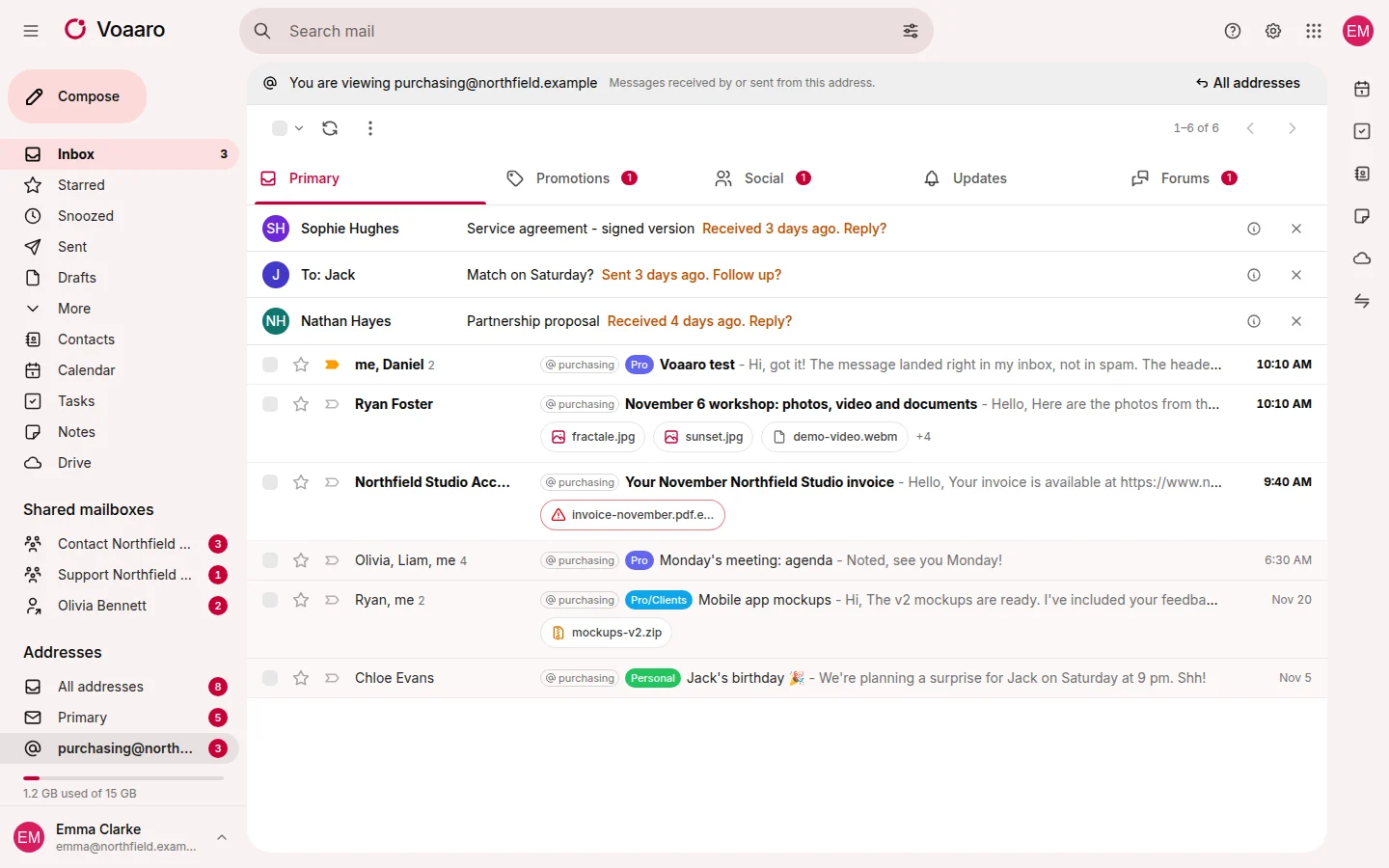
The search deliveredto:purchasing@example.com gives the same result from any view (see Search).
Send from the right address
Settings › Accounts › Send mail as lists your sending addresses (main, aliases, secondary): choose the default one, and whether a reply is sent from the address that received the message or always from the default address. When composing, you can change it for each message in the From field.